

Theme
Language
All CollectionsExchangesConnecting Your Exchange
Open in full help center
Exchanges

Connecting Your Exchange

Updated April 7, 2026

Each exchange requires specific credentials to allow fomoed to trade on your behalf. All credentials are encrypted and stored securely. fomoed uses agent wallets and API keys with trade-only permissions — we can never withdraw or transfer your funds.
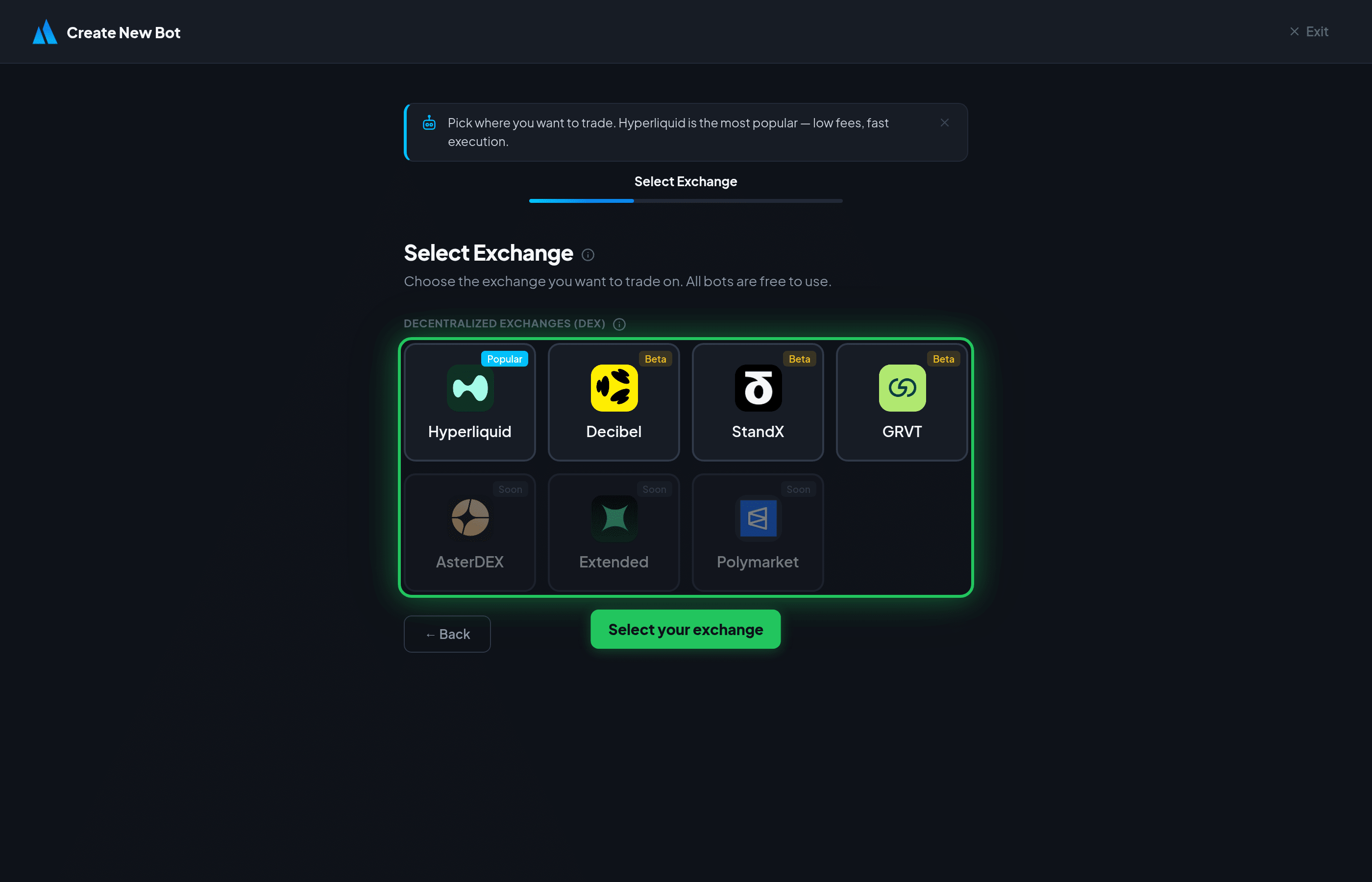
Select your exchange in the bot setup wizard

Hyperliquid

Hyperliquid is the most popular DEX on fomoed. It supports two connection methods:

Method 1: Connect Wallet (Recommended)

This is the easiest way — your browser wallet handles everything automatically.

  1. Select Hyperliquid in the bot setup wizard and click Connect Wallet.
  2. Your MetaMask (or Rabby) will prompt you to connect — approve the connection.
  3. fomoed generates a secure agent wallet that can only place trades on your behalf.
  4. Sign the Agent Approval message in MetaMask — this authorizes the agent wallet on Hyperliquid.
  5. Sign the Builder Fee Approval message — this is a one-time 0.01% fee approval (built into exchange fees, not extra).
  6. Your bot is ready to trade. Your funds stay in your wallet at all times.
Wallet requirement: You must have funds deposited on Hyperliquid before connecting. Make sure your wallet is on the Arbitrum network.

Method 2: API Private Key

Use this if you prefer to manage API keys manually, or if you don't have a browser wallet extension.

  1. Go to app.hyperliquid.xyz/API.
  2. Click Generate API Private Key to create a new API wallet.
  3. Copy your Wallet Address (your main wallet, starts with 0x).
  4. Copy the API Private Key (the generated key, NOT your main wallet's private key).
  5. Enter both in the bot setup wizard under the Private Key tab.
Important: The API Private Key is different from your main wallet's private key. The API wallet can only trade — it cannot withdraw funds. Never share your main wallet's private key with anyone.

GRVT

GRVT is a hybrid DEX with institutional-grade performance and on-chain settlement.

  1. Sign up at grvt.io and complete the onboarding process.
  2. Go to Settings → API Management in your GRVT account.
  3. Click Create API Key and enable trading permissions.
  4. Copy the following credentials:
    • API Key — your unique API identifier
    • API Secret — the secret key (shown only once, save it securely)
    • Account ID — your GRVT account/sub-account ID
  5. Enter all three in the bot setup wizard.

AsterDEX

AsterDEX supports both perpetual futures and spot trading with up to 100x leverage.

Method 1: Connect Wallet

  1. Select AsterDEX in the bot setup wizard and click Connect Wallet.
  2. Your MetaMask will prompt you to connect and sign an authentication message.
  3. fomoed creates an API key automatically through the wallet connection.
  4. Your bot is ready to trade.

Method 2: Manual API Key

  1. Visit asterdex.com and connect your wallet.
  2. Go to API Management in your account settings.
  3. Create a new API key with trading permissions.
  4. Copy the API Key and API Secret.
  5. Enter both in the bot setup wizard.

Extended

Extended (formerly dYdX-based) uses StarkKey cryptography for on-chain order signing.

Method 1: Connect Wallet

  1. Select Extended in the bot setup wizard and click Connect Wallet.
  2. Your MetaMask will prompt you to connect and derive your Stark keys.
  3. fomoed retrieves your API credentials automatically.
  4. Your bot is ready to trade.

Method 2: Manual API Key

  1. Go to extended.exchange and log in.
  2. Navigate to Settings → API and create a new API key.
  3. You'll need four credentials:
    • API Key — your API identifier
    • Stark Public Key — used for order verification
    • Stark Private Key — used for order signing (keep secret)
    • Vault ID — your trading vault identifier
  4. Enter all four in the bot setup wizard.

Decibel

Decibel is an on-chain trading engine built on Aptos. It supports wallet connections from Phantom (Solana), Petra (Aptos), and other wallets.

Method 1: Connect Wallet

  1. Select Decibel in the bot setup wizard and click Connect Wallet.
  2. Connect using your preferred wallet (Phantom, Petra, etc.).
  3. Decibel generates an Aptos trading address for your account.
  4. fomoed creates a delegated API wallet for trading.
  5. Your bot is ready to trade.

Method 2: Manual Credentials

  1. Visit decibel.trade and connect your wallet.
  2. Go to your account settings and find your trading credentials.
  3. You'll need three credentials:
    • Wallet Address — your Decibel trading wallet (the Aptos address shown on your Decibel profile)
    • API Wallet Address — the delegated API wallet address (generated when you create an API key)
    • Private Key — the API wallet's private key (Ed25519 format, starts with 0x)
  4. Enter all three in the bot setup wizard.
Delegated trading: Decibel uses a delegation system. The API wallet trades on behalf of your main wallet. Your main wallet's funds are never exposed — the API wallet can only place and cancel orders.

StandX

StandX uses DUSD as its margin currency and supports wallet-based authentication.

Connect Wallet

  1. Select StandX in the bot setup wizard.
  2. Click Connect Wallet and choose your wallet (BSC or Solana).
  3. Sign the authentication message in your wallet.
  4. fomoed receives a session token for trading on your behalf.
  5. Your bot is ready to trade.
DUSD margin: StandX uses DUSD as its margin currency. Make sure you have DUSD deposited before deploying a bot.

General Security Tips

  • Never enable withdrawal permissions — fomoed only needs trading permissions.
  • Use dedicated API keys — create separate keys for fomoed, don't reuse keys from other services.
  • Agent wallets are safe — on DEX exchanges, agent/API wallets can only trade. They cannot withdraw, transfer, or move your funds.
  • Encryption — all credentials are encrypted at rest using AES-256 encryption.
  • One wallet per account — each wallet/API key can only be linked to one fomoed account for security.

Did this answer your question?

Previous
Supported Exchanges